Gian Boender
Many business owners have used the WhatsApp Business app on their phone for years. Customers know the number; it is on the website, the van and the packaging. But as soon as more people need to answer customer questions, or you want to automate messages, you hit the limits of the app. Until recently that meant taking your number out of the app and moving it to the WhatsApp Business API.
Not anymore. You can now keep using the WhatsApp Business app and connect the same number to the API. Meta calls this coexistence. This article explains how it works, what comes along, what to watch for and how to set it up in Bugalou.
The short answer
- Yes, you can: you connect your number from the WhatsApp Business app to a platform like Bugalou and keep using it on your phone afterwards.
- Messages go both ways: what a customer sends shows in the app and in the shared inbox, and what you send from the inbox also shows in the app.
- Your chats come along: if you allow it, Bugalou fetches the conversations from the last 6 months.
- A few things stop working in the app: broadcast lists, disappearing messages, view once and live location. Group chats stay in the app but don't come into the inbox.
- You need the WhatsApp Business app, version 2.24.17 or later. It doesn't work with the regular WhatsApp app.
What changed?
There are two ways to use WhatsApp for business: the free WhatsApp Business app on your phone, and the WhatsApp Business API, which lets you work as a team through a platform, connect your online store and automate. The full comparison is in WhatsApp Business API vs. WhatsApp Business app.
For a long time a number could only be on one of the two. To move to the API, you had to remove the number from the app. You lost your chat history in the app, and you could no longer quickly reply from your phone. That is why many small businesses stayed on the app, even when it no longer worked for several colleagues.
Coexistence removes that choice. The number stays in the app on your phone, and is connected to your inbox through the API at the same time.
How does it work?
After connecting, the app and the inbox work side by side on the same number:
- Incoming messages from customers appear in the app and in Bugalou.
- Messages you send from Bugalou also show in the app on your phone.
- Messages you type on your phone appear in Bugalou with the label Phone, so your colleagues also see what you answered on the go.
- Your contacts come along, with the names from your phone.
- Your chat history comes along if you share it while connecting: the conversations from the last 6 months. They appear as closed conversations, so they don't fill your list of open questions. Older photos and files are sometimes only visible in the app.
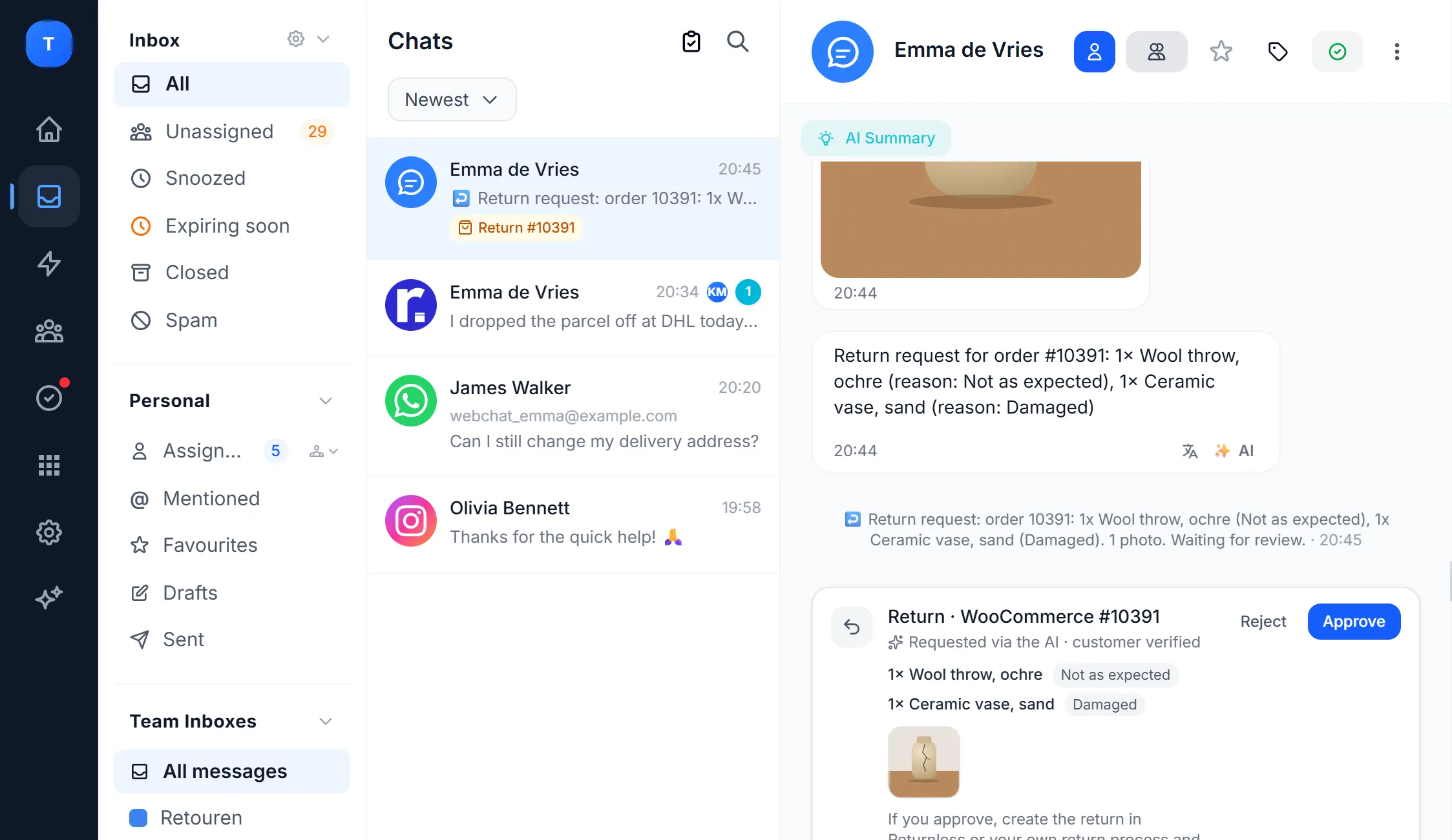
Your team works in the shared inbox, with assigning, internal notes and automatic distribution, while you as the owner can still check the app in the evening or at the weekend.
Who is this for?
- Small businesses that are growing. You used to do everything yourself in the app; now a colleague helps. You don't want to lose the number, or the app. See also WhatsApp Business with multiple users.
- Online stores that want to automate. Order updates, shipping messages and an AI agent run through the API. With coexistence you add them without giving up your familiar number.
- Shops and salons with a well-known number. Customers have messaged the same number for years. That stays the same, even if you start working with an inbox behind the scenes.
- Owners who don't want to miss the app. For a quick reply on the go, the app on your phone is sometimes simply easiest.
How to connect your number in Bugalou
- Update the app. Make sure you use the WhatsApp Business app, version 2.24.17 or later. Is your number in the regular WhatsApp app? Move it to the WhatsApp Business app first.
- Start connecting. In Bugalou, go to Channels and choose WhatsApp. Tick that you have a Facebook account and your phone number ready.
- Log in to Meta. A Meta window opens. Log in with Facebook, choose or create your business portfolio and enter your number.
- Confirm in the app. Meta recognises that the number is in the WhatsApp Business app. You get a message in the app on your phone: tap connect and choose whether to share your chat history.
- Pick the number. Select the number in Bugalou. No PIN is needed: this number is already registered.
- Done. Bugalou connects the number to your inbox and fetches your contacts and, if you shared them, your chats. Settings → WhatsApp shows how far the import is. Then choose which team gets this number's messages.
All details, also for a new number, are in the help article How to connect WhatsApp Business.
What to watch for
| Topic | What happens |
|---|---|
| Group chats | Stay in the app, but don't come into Bugalou, so the AI agent and automations don't work there. All conversations with a single customer do come in. |
| Broadcast lists | Stop working in the app. To message many customers at once, use broadcasts through the API. |
| Disappearing messages, view once, live location | Stop working in the app. |
| Opening the app | Open the app at least every two weeks. If you don't use it for a long time, Meta ends the connection and you have to connect again. |
| WhatsApp calling | Calling through Bugalou isn't available on such a number. Calls come in on the app as usual. |
| AI agent | Doesn't answer on a number from the app by default; you answer yourself. Want it to answer? Pick the number on the AI agent under Channels. |
| 24-hour window | Only applies to messages from Bugalou. Customers who wrote to you before you connected can only be reached from Bugalou with a template, until they message again. |
More about that window in the WhatsApp 24-hour messaging window explained.
What does it cost?
- Messages you type in the app stay free, as they are now.
- Messages from Bugalou go through the WhatsApp Business API, so Meta's regular rates apply, per message and per category. Replies to customers who message you are free within the free monthly amount.
- Bugalou itself is a monthly subscription, depending on your plan.
A full overview of the rates is in WhatsApp Business API pricing in 2026. The WhatsApp pricing calculator works out what it costs for your number of messages.
Frequently asked questions
Will I lose my chats when I connect?
No. Your chats stay in the app. If you share your chat history while connecting, Bugalou also fetches the conversations from the last 6 months, so your team sees them too.
Does this work with the regular WhatsApp app?
No, only with the WhatsApp Business app. If your number is in the regular WhatsApp app, move it to the WhatsApp Business app first and connect it afterwards.
Can my colleagues use the app on their own phones?
Your colleagues work in Bugalou, in the browser or the Bugalou app, each with their own login, so you can see who picks up which conversation. The WhatsApp Business app itself stays on your own phone.
What if the connection breaks?
That happens if you haven't opened the app for a long time, ended the connection in the app or registered WhatsApp again. With a new phone, Meta usually restores the connection by itself within a few minutes. Otherwise, connect the number again via Channels → WhatsApp.
Want to keep your familiar WhatsApp number and still work as a team in one inbox, next to Instagram, Facebook, email and your website chat? Try Bugalou free for 14 days.