Gian Boender
Happy customers rarely leave a review on their own. Not because they don't want to, but because it takes too much effort: open Google, search for your business, find the reviews and only then click "Write a review". A Google review link skips all of that. The customer taps the link and the window for stars and a review opens right away.
In this article you'll learn how to create that link, how to turn it into a QR code, and how and when to ask customers for a review without breaking Google's rules.
Short answer
- From your Business Profile: search for your business name on Google while signed in to the account that manages your Google Business Profile, and click the button to ask for reviews. Google gives you a short link starting with g.page/r/.
- With your Place ID: look up your business in Google's free Place ID Finder and add the Place ID after https://search.google.com/local/writereview?placeid=.
- QR code and review card: paste your link or Place ID into our free Google review link generator and download a QR code and a printable review card.
Why Google reviews matter
Google reviews appear exactly where people come across your business: next to your name in search results and in Google Maps. Anyone choosing between two online stores or two local shops almost always glances at the star rating and the latest reviews.
Google also lists reviews as one of the things that count towards local search results. More reviews and a good rating help you get found, especially if you have a physical store, showroom or pickup point.
Reviews on your own site or on a review platform are valuable too. Tips for every kind of review are in how to get more reviews for your webshop: 8 proven tips. This article is about Google specifically.
Method 1: the link from your Google Business Profile
The easiest way is the link Google gives you:
- Sign in with the Google account that manages your Google Business Profile.
- Search for your business name on Google. Your profile with management options appears at the top.
- Click Ask for reviews (in some versions the button is called Get more reviews).
- Google shows a short link, usually in the form https://g.page/r/.../review. Copy it.
Don't see the button? You're probably not signed in with the right account, or your profile hasn't been verified yet. You can also find the link in the app or at business.google.com, under your profile's reviews.
Method 2: a link with your Place ID
Every location in Google Maps has a unique Place ID, a long code that usually starts with ChIJ. With that code you can build a direct review link yourself:
- Open Google's free Place ID Finder (search for "Google Place ID Finder").
- Type your business name and pick your business from the list.
- Copy the Place ID that appears.
- Add it after this link: https://search.google.com/local/writereview?placeid= followed by your Place ID.
This also works when you don't have access to the Business Profile, for example when a colleague or agency manages it. Always test the link on your phone: the review window for your business should open straight away.
Turn it into a QR code and review card
A link is handy in messages, but in your store or in a parcel a QR code works better. In our Google review link generator you paste your g.page link, your writereview link or just the Place ID. You get:
- a direct review link to copy and test;
- a QR code as PNG or SVG, for your till, counter, shop window or packaging;
- a printable review card with the QR code, to put in parcels or on display.
The generator is free and you don't need an account.
When to ask for a review
Timing decides a lot about whether customers respond. Ask while the experience is fresh and the customer is happy with it:
- Online store: a few days after delivery, once the customer has had a chance to use the product. Not at checkout, when they haven't received anything yet.
- Store or restaurant: right after the visit or at the till.
- Services: as soon as the job or appointment is done.
- After great support: did your customer service just solve a problem well? The customer is often extra willing to give something back.
Ask once, with one friendly reminder at most. Asking more often feels pushy.
Where to share your review link
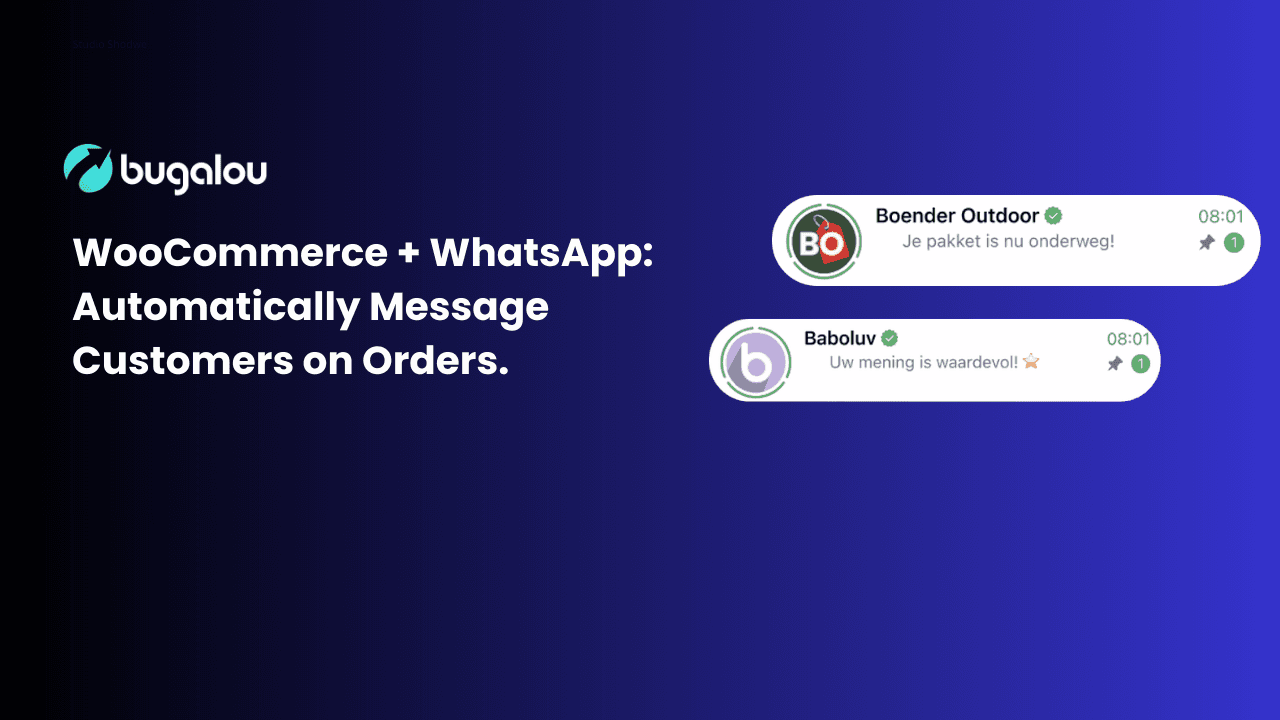
A short WhatsApp message usually gets read quickly. Example:
Email exampleHi Lisa! Your order has been delivered, we hope you love it. Would you help us with a short review on Google? It only takes a minute: [link] Thank you!
Only message customers who want to receive WhatsApp messages from you, and keep it short and personal.
A separate, short email works better than a review request at the bottom of a newsletter. Example:
Email exampleSubject: How are you finding your order?
Hi Mark,
Your order was delivered a few days ago and we'd love to know how you like it! Would you share your experience in a short Google review? It helps other customers, and we learn from it.
[Write a review]
Did something go wrong? Just reply to this email and we'll sort it out.
That last line matters: you offer help with problems, but you ask everyone for a review, not just happy customers.
In the parcel or on the packing slip
A card with the QR code in the parcel asks for a review at the moment the customer unpacks the order. You can also print the QR code on the packing slip or invoice.
At the till or counter
Put the review card by the till, on the table or near the exit. The customer scans the code with their own phone.
In your email signature
A short line such as "Happy with us? Leave a review on Google" with your link under every email brings in a steady trickle. You can make a clean signature for free with the email signature generator.
On your website
Put the link on your thank-you page after an order and on your contact page.
Send review requests automatically with Bugalou
Messaging every customer by hand doesn't last long. With Bugalou you set up an automation that does it for you:
- WooCommerce: send a WhatsApp message or email with your review link as soon as an order is completed.
- Shopify: send the message as soon as an order has been shipped.
- MyParcel or Sendcloud: send the message as soon as the parcel is delivered. That is often the best moment.
Want to give the customer a few days to try the product first? Add a wait of a few days before the message.
If a customer replies with a question or complaint, that reply lands in your shared inbox so you can solve it quickly. More on automatic messages in how to automate WhatsApp messages.
Google's rules: what's not allowed?
Google is strict about fake and manipulated reviews. Stick to these rules, or Google may remove reviews or restrict your profile:
- No rewards for reviews. No discount, gift, giveaway or money in exchange for a review, not even for an honest one.
- No review gating. Don't only ask happy customers for a Google review, and don't send unhappy customers to a different form first to keep them away from Google.
- No fake reviews. Don't review your own business and don't let staff, family or an agency do it either. Never buy reviews.
- No review station at your business. Don't let customers write a review on a tablet or computer in your store. A QR code customers scan with their own phone is fine.
Consumer protection rules in the EU and elsewhere also ban misleading and bought reviews. Asking honestly, and asking everyone, is the only good approach.
Respond to your reviews
Asking for reviews is half the work. Respond to what customers write too:
- Positive review: thank the customer, ideally personally and not with the same sentence every time.
- Negative review: respond calmly and quickly, offer a solution and move the conversation to a private channel where needed. How to do that, with example replies, is in responding to negative reviews: step-by-step plan and examples.
Future customers read your replies as well. A thoughtful reply to a critical review often builds more trust than five stars alone.
Common mistakes
- A link to your profile instead of the review window. The customer still has to search. Always use the direct review link.
- Asking too early. Asking for a review before the parcel arrives gets you nothing, or an undeserved bad review.
- Messages that are too long. The shorter the message, the more likely the customer taps the link.
- Only asking happy customers. That breaks Google's rules.
- Not testing the link. Check on a phone that the link opens the review window for your business.
Frequently asked questions
What is a Google review link?
A direct link that opens the window where a customer can give your business stars and a review. The customer doesn't have to look up your business first.
Is a Google review link free?
Yes. Both the link from your Business Profile and the Place ID link are free. Our generator for the QR code and review card is free too.
Do I need a Google Business Profile?
To receive reviews your business has to be on Google Maps, usually with a Business Profile. An online store without a physical location can have a profile too, as a service-area business without a public address.
Can I get a review removed?
Only if it breaks Google's rules, for example spam, hate speech or a review that isn't about your business. You can report such a review in your Business Profile. Google keeps negative but honest reviews.
Can I give customers a discount for a review?
No. Google prohibits any kind of reward in exchange for a review, even if you only ask for an honest one.
Want to ask for a review automatically after every delivery via WhatsApp or email, and answer every customer reply from one inbox? Try Bugalou free for 14 days.